After pushing the products from Import List into the store, sometimes you can see a problem with images. Your products are published, but the status is Draft, and don’t have variants and images. Often it happens if you run the bulk publish actions for a lot of products in your import list.
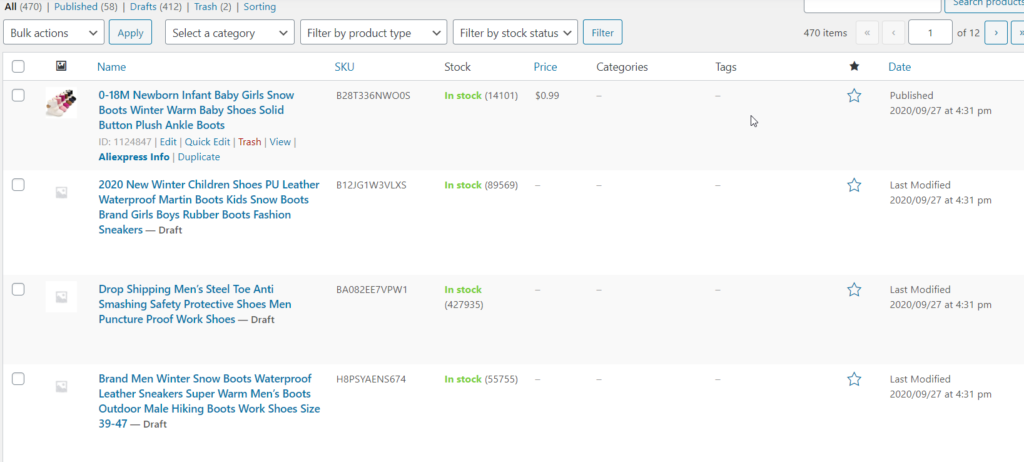
By default our plugin splits the import process in steps and import your product in the background mode. First it downloads basic product data such as title and description, then loads product images and variations. Such method allows to save your server/hosting resources. While this background process is running, you can close the import page and do other business tasks.
Normally you can check your products in several hours and notice that all products are imported even if you send a lot of products to publish.
To avoid showing incompletely loaded products on the frontend, in Ali2Woo settings you can set Default product status to Draft. When products are fully imported, you need just publish them.
Perhaps you know that recently, we have released a new plugin for dropshipping with AliExpress. It has updated codebase and optimized modules, also internally it’s based on our own parsers instead of AliExpress API. In other words, it’s completely new solution but with the same graphic interface and 100% compatible with Ali2Woo. We recommend to consider the migration to the new solution because it works better with most of web-hosting, that for sure resolve al lot of your problems which you may experience with current plugin. Migrate to AliNext plugin.
I wait for a few hours but all products stay without images still. How to fix?
There is a special page in the plugin settings where you can check what is happening with your products.
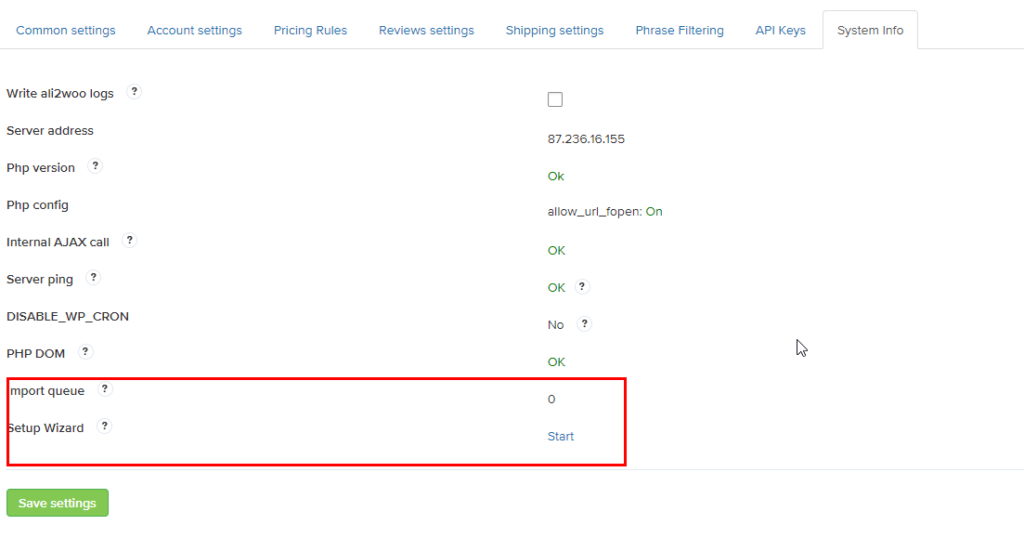
In the screenshot, you can see that the “Import Queue” is zero. An empty queue indicates that there are no products left to import, meaning all products have been processed. If there are products in the import queue that have not yet been processed or are waiting to be processed, the queue value will be greater than zero. If you previously used the “Publish All Products to Shop” function in the import list, you may find that the queue value is quite high.
Typically, the queue value decreases gradually, with the rate of decrease depending on your server or hosting characteristics. However, there may be instances where internal errors or other issues on your server interrupt scheduled tasks. When such problems occur, you might notice that the queue value remains unchanged for an extended period, such as 20 minutes. You can easily check this by refreshing the settings page to see if the queue value has decreased during that time.
If you find that your queue value has not changed, click the “Start” button next to the import queue value. This action will prompt the plugin to reprocess the queue. After clicking “Start,” please wait for 20 minutes and then refresh the page. The import queue value should begin to decrease, indicating that your issue has been resolved and that all products will soon be fully imported.
How can WordPress automatically process items in the queue?
In this chapter we describe a solution allowing to resolve the issue with your import queue.
Linux Cron Job vs. WP-Cron
When you push one product to the import queue, normally it should be by WordPress cron job. Though WordPress has its own cron feature that dictates the scheduling of your events, WP-cron is not a literal cron job.
Linux cron jobs can be controlled by the user, making certain that the items constrained by schedule are run appropriately. Also, for a high-traffic WordPress site, a Linux cron job can assist with reducing the chances of downtime by lowering the bandwidth on the server, thus using less server resources.
WP-cron is a virtual cron that only works when the page is loaded. WP-cron is first loaded by WordPress when a page is requested on the front or backend of a site at which point WP-cron displays the necessary page to the site visitor.
How to Replace WP-Cron With a Linux Cron Job
The best way to optimize the efficiency of your WordPress cron jobs is to disable WP-cron and set up a normal cron job through cPanel which will run every hour.
- Disable wp-cron.php
You can disable WP-cron by modifying the wp-config.php (located in the folder where WordPress is installed). Open the wp-config.php file, add a new line after <?php, then add the following code on the new line:define('DISABLE_WP_CRON', true); - Disable wp-cron.php
- To set up a Linux cron job:
- Log into your cPanel.
- In the Advanced section, click Cron jobs.
- Under Add New Cron Job, select the time interval. We recommends that you do not set the interval lower than 15 minutes.
- Set the cron command to the following, replacing yourwebsite.com with your actual domain name:
wget -q -O - http://yourwebsite.com/wp-cron.php?doing_wp_cron >/dev/null 2>&1 - Click Add New Cron Job to set the cron.
It doesn’t help what to do next?
You can try to disable the background mode. To do that just untick the Import in the background checkbox in Ali2Woo settings. However, this can cause problems with importing products having a lot of variations and images. If you disable the background import, the plugin will try to impor whole product at once and take a lot of server resources. That’s why we don’t recommend doing that.
If it doesn’t solve the problem, contact the support center. Our technical specialists help you to resolve it.
Will this plugin import the 50 by 50px variation thumbnail images?
You can change the variant thumbnail size.
Will this plugin import the AliExpress 50 by 50px variation thumbnail images please?
These thumbnails are now showing up automatically on my site.
It will be great if you help check out
https://www.aliexpress.com/item/4000115101902.html
vs
https://jufunetools.com/product/digital-caliper-6-inch-electronic-vernier-caliper-100mm-calliper-micrometer-digital-ruler-measuring-tool-150mm-0-1mm/
Thank you so much.
You have to contact our support center.
Still have the same problem, help, still shown as draft. i really need help, deleted cashing plugin ,desactivated all plugins still the same? i think you should fix your plugin
Please send the request to our support center, our technical specialist will check it.
Still have the same problem, help, still shown as draft. i really need help, deleted cashing plugin ,desactivated all plugins still the same? i think you should fix your plugin.
Your technical support center couldn’t solve my problem either.
Thank you for your comment. Please send it to our support center. Our specialist will answer you there. Support center link: https://support.ali2woo.com
Well, I have found out why that is happening, in my case at least. If you have let’s say 30 imported products, and you would like to push the newest imported product by “sort by date (new first)”, then you will see that the product isn’t pushed to the store. But when you push the oldest imported first, then it works. I believe, this is a bug and needs to be updated.
Hello, it’s interesting note. Could you send the request to our support center: https://support.ali2woo.com
Our engineers will check it.
The photos are not uploading on my site.
Please contact our support center: https://support.ali2woo.com/