This article will learn you how to change product variation names and their values.
For example: in the following product you see the “Color” but the name should be “Type” instead.
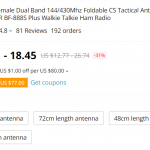
With Ali2Woo you can change product variants before pushing the product to your store. To do that locate your product in the Import List and modify it. This is the preferred way that our team recommends for our users.
Alternatively, you can do that for already imported (existed) products in your store.
Let’s look at each method:
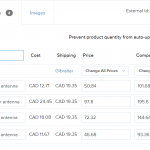
In the Import List, each variation name is shown in a separate editable column.
Change a text there and then the appropriate variation name is changed too.
If you have already pushed a product to Woocommerce, it’s possible to change the product variation name on this stage too.
We hope you remember that each variation is a set of attributes. Therefore to change its names, you need to edit the corresponding attribute names.
Below the global attributes page is shown. Open Products > Attributes to see this page in your WordPress backend.
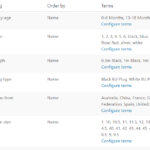
So the process is very easy. Just find the necessary attribute, the change its name, value, or both texts.
Let’s say you want to import a product with five variations. If you hover your mouse over some variant (on AliExpress website), you will see a text hint. This is a text representation of the variant.
For example, below, a text hint for variation is “2”. And it is not clear. Because we expect the color name such as “black” instead of “2”.
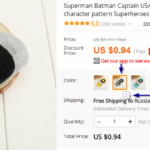
The good news is you can set a desired value in the Import List.
Now we’ll illustrate this process:
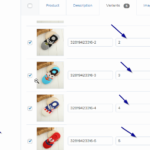
Once you add a product into the Import List, locate it there and width to an appropriate Variants tab. Then just change the values for variation’s attributes as needed.
When you push that product into WooCommerce, the customized attributes are added to the product and the changes will not be reset after AliExpress synchronization.
In another case, if a product exists already in your store, you can change a product variant values as well.
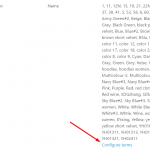
Open the Products > Attributes page, find a desired attribute (for example: Color) and click on Configure terms.
You will see all terms (values) of that attribute. Then edit texts you need and save the changes.
Comments open