How to Set Shipping Cost in Bulk for Imported Products
The premium version of AliNext introduces an advanced feature that lets you assign shipping costs automatically in bulk for all products on your import list. This helps save time and ensures consistent shipping behavior based on your regional preferences.
When Should You Set Shipping Options?
Setting shipping options is useful in several scenarios depending on how you manage your imported products and pricing strategy:
- Quick Comparison – Use shipping assignment to quickly compare available shipping options across multiple products in your import list.
- Pricing Inclusion – If you’ve enabled pricing rules that incorporate shipping cost into product price, assigning shipping ensures accurate pricing in your store.
- Default Shipping Display – When the “Use AliExpress Shipping” feature is activated in your plugin settings, assigning a default shipping method in bulk ensures consistent visibility of shipping options across your storefront—including product detail pages and the checkout process.
Auto-Assigning Shipping During Import
When a new product is added to the import list, AliNext scans the product’s variations to find a match for your configured region.
Region-Based Variation Selection
- The plugin looks for a variation with a warehouse located in your plugin region setting (e.g., France).
- If no regional variation is available, the plugin defaults to the first China-based variation.
Shipping Option Detection
Once the appropriate variation is identified:
- The plugin checks available shipping methods.
- It assigns the default shipping option set in your plugin settings.
- f the default is unavailable, it applies the lowest-cost available option.
- If no valid shipping option is found for your target country, no shipping will be assigned.
Optional: Disable Auto-Assign on Import
You can optionally disable auto-fetching of shipping data using the “Auto-Assign Shipping on Import” setting in the plugin’s Shipping Settings. This feature:
- Works only in the premium plugin version.
- Requires the “Use AliExpress Shipping” feature to be active.
- Helps conserve your daily API quota when importing large numbers of products.
Later, you can assign shipping manually at any time using the “Apply Shipping in Bulk” modal.
Bulk Shipping Update for Existing Products
You can also reassign shipping for products already in the import list using the bulk action tool.
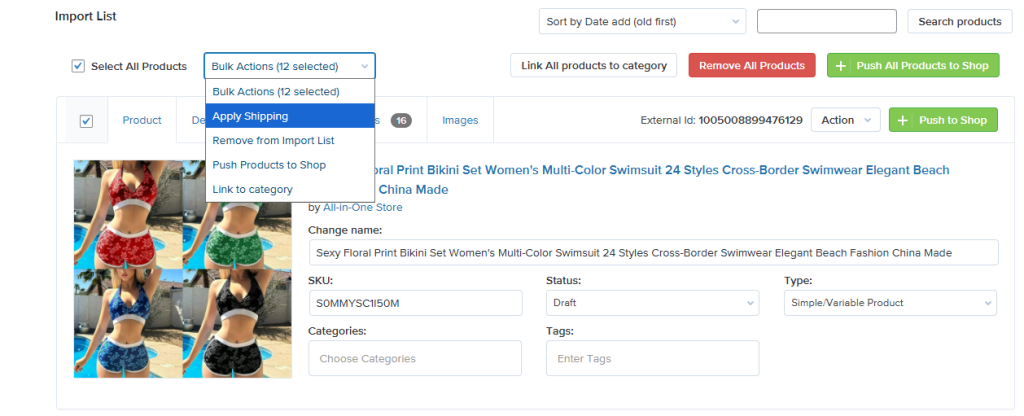
Steps to Apply Bulk Shipping
- Tick the products you want to update.
- From the Bulk Actions dropdown, select Apply Shipping.
- A modal named Apply Shipping in Bulk will appear.
- Set your desired options and start the process.
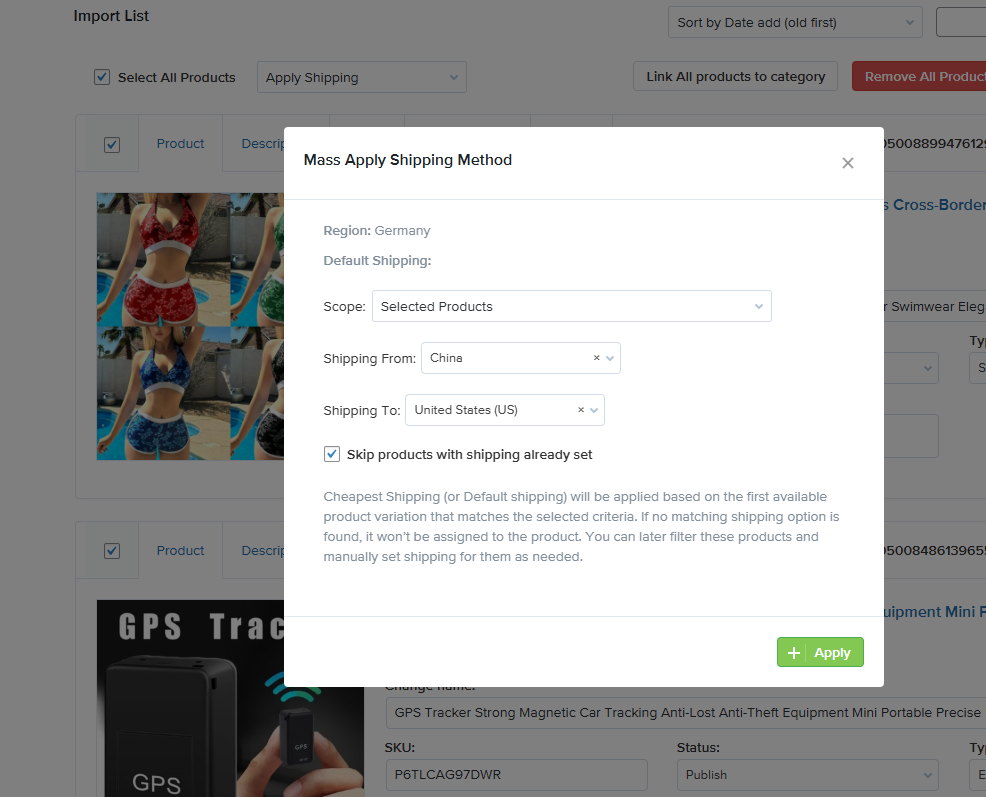
Notes
- Make sure your plugin’s regional settings and default shipping option are correctly configured before using this feature.
- Products without any shipping options available for your region will be skipped.
Sorting Options by Shipping Cost
To help users prioritize products based on delivery expenses, AliNext Premium includes sorting options by shipping cost within the import list:
- Sort by Shipping Cost (Low to High) – Quickly surface products with the most economical shipping.
- Sort by Shipping Cost (High to Low) – Identify items with premium or expensive delivery options.
These sorting tools simplify decision-making for bulk editing and importing, especially when managing cost-efficient product strategies.
Comments open